Launcher Guides
Guides to resolve issues or improve your experience with the Tori Launcher specifically, not the game.
Manually install Java for Tori
This guide will help you manually download and install Java for use with Tori Client in the case that automatic installation fails or some other wacky issue occurs.
This guide is outdated and requires updating. Please contact our support team for personalized assistance.
- If you are on Windows:
- Download Java using this link: https://cdn.toriclient.com/java/jdk21_win.zip
- Extract the file, and inside you'll find a folder called
jdk-21.0.5+11 - Open Run by pressing Windows + R on your keyboard or search for it in the start menu, then paste this into the dialog and hit enter:
%appdata%/torilauncher. This will open a new File Explorer window in Tori's data folder. - Move the folder from before into this folder.
- Make sure you more the folder itself, not the contents.
- Do not rename the folder. It must keep it's original name.
- You should now have a folder called
jdk-21.0.5+11inside%appdata%/torilauncher. - Try to launch and see if it works now. If it still does not work, please open a ticket in our Discord server for additional personalized support.
- Download Java using this link: https://cdn.toriclient.com/java/jdk21_win.zip
- Builds for other platforms are not yet available.
Obtaining Launcher Logs
This is a brief guide on how to send us launcher logs to help troubleshoot and fix issues.
This page is outdated and requires updating. Please reach out to our support team for personalized assistance.
Before submitting any logs, please make sure you recreate the issue first. When the launcher restarts, the log is cleared and all of the useful information is wiped!!!
ToriLauncher's logs do not contain any personal identifiable information. The only information it may contain is your computer account's username and your Minecraft username. It is safe to upload the log to our support staff, however we do not recommend uploading it to non-official Tori staff. Learn more at [how to stay safe with Tori, needs link].
If you can access the launcher
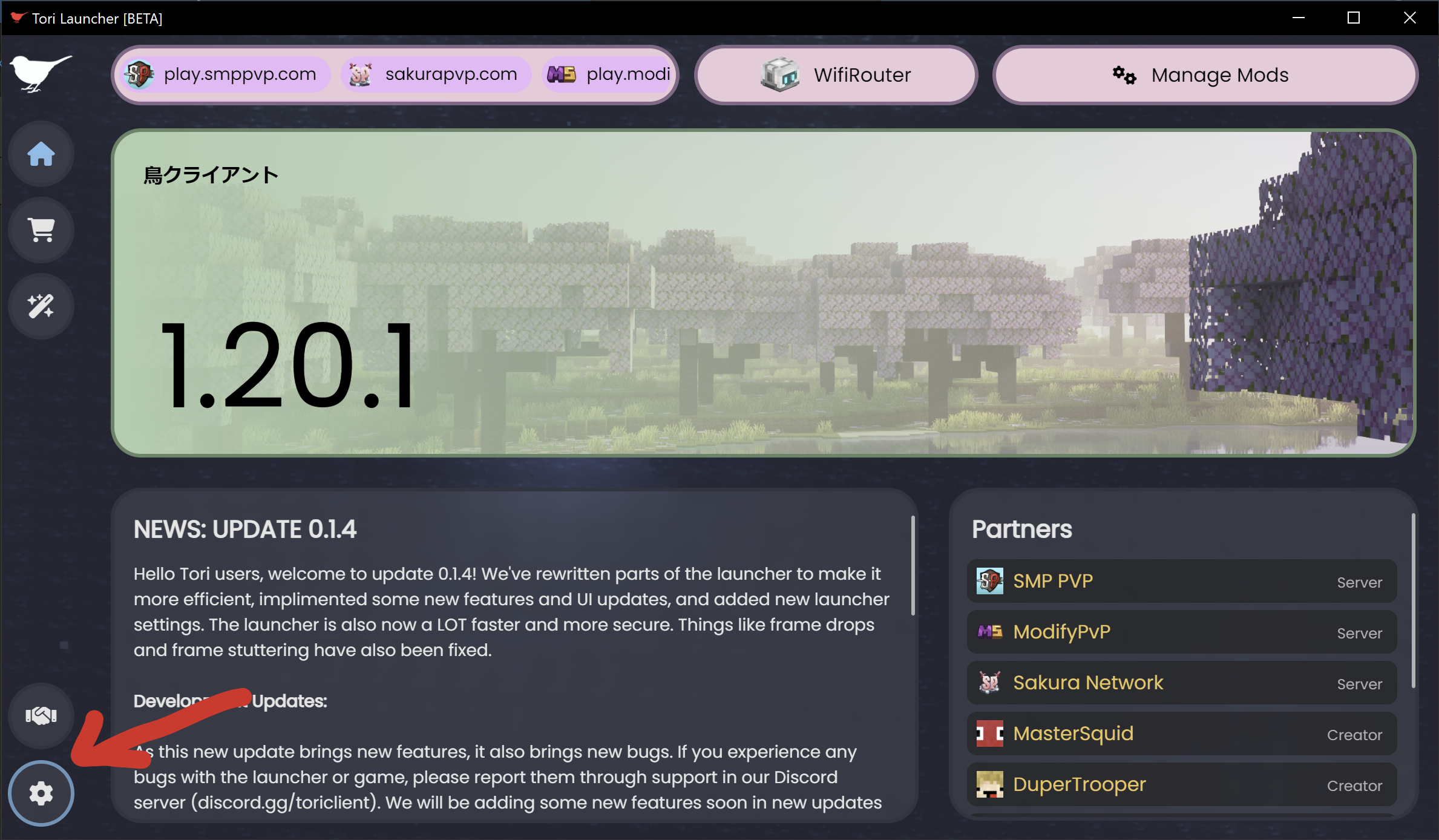
- Head over to the launcher settings using the Settings gear on the bottom left

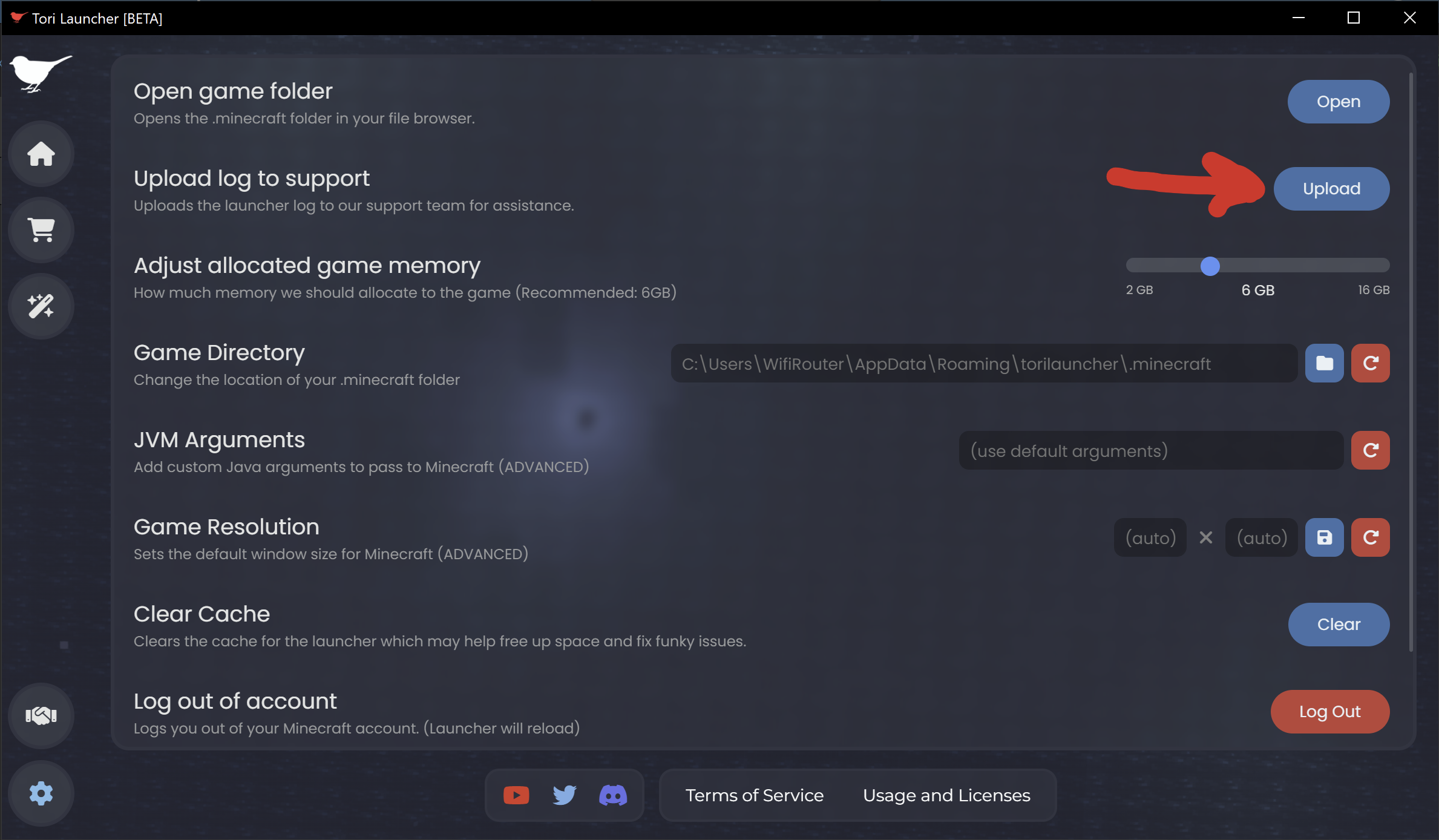
- Hit the blue Upload button

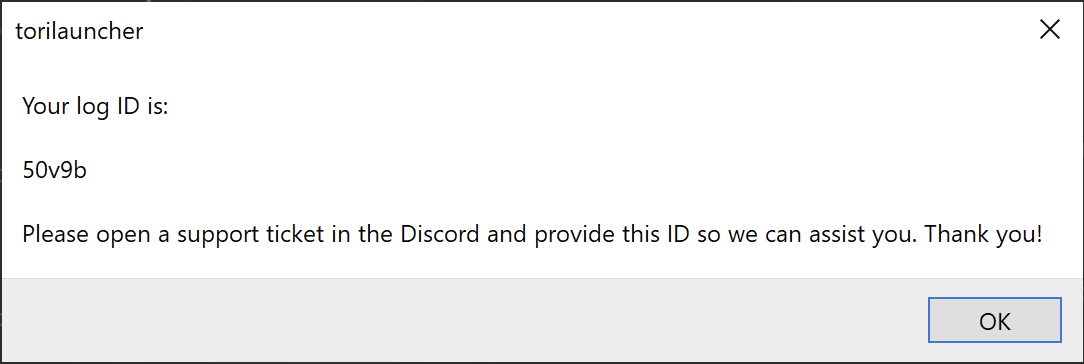
- A popup will appear with a randomly generated ID. Open a ticket and send our support team this ID so we can take a look at your log.
-

If you CAN'T access the launcher or cannot upload a log automatically
- If you are on Windows:
- Open Run by pressing Windows + R on your keyboard or search for it in the start menu, then paste this into the dialog and hit enter:
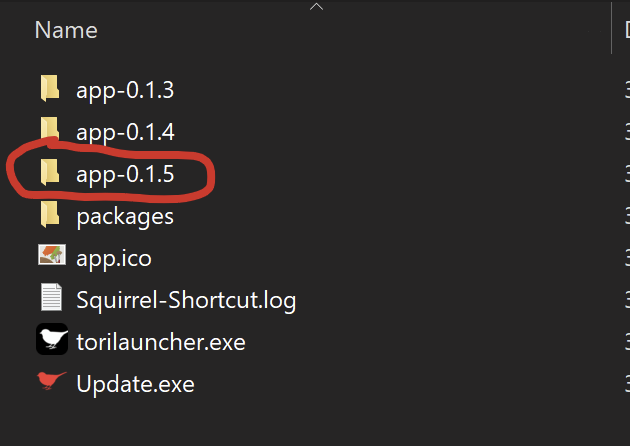
%localappdata%/ToriLauncher. This will open a new File Explorer window in Tori's installation folder. - You will see a set of folders (or just one depending on when you installed Tori) that look like
app-0.x.x. Open the one with the highest version. For example, if you hadapp-0.1.3,app-0.1.4, andapp-0.1.5you would chooseapp-0.1.5.
- In that folder, you will find a file called
launcher.log, that's the file you're looking for! You can send this file to our support staff directly for assistance.
- Open Run by pressing Windows + R on your keyboard or search for it in the start menu, then paste this into the dialog and hit enter: