This guide is outdated and requires updating. Please contact our support team for personalized assistance.
- If you are on **Windows**: - Download Java using this link: [https://cdn.toriclient.com/java/jdk21\_win.zip](https://cdn.toriclient.com/java/jdk21_win.zip "Java 21 download for Windows") - Extract the file, and inside you'll find a folder called `jdk-21.0.5+11` - Open Run by pressing Windows + R on your keyboard or search for it in the start menu, then paste this into the dialog and hit enter: `%appdata%/torilauncher`. This will open a new File Explorer window in Tori's data folder. - Move the folder from before into this folder. - Make sure you more the folder itself, **not the contents.** - **Do not rename the folder. It must keep it's original name.** - You should now have a folder called `jdk-21.0.5+11` inside `%appdata%/torilauncher`. - Try to launch and see if it works now. If it still does not work, please open a ticket in our [Discord server](https://discord.gg/toriclient "Tori Client Discord server") for additional personalized support. - Builds for other platforms are not yet available. # Obtaining Launcher Logs This is a brief guide on how to send us launcher logs to help troubleshoot and fix issues.This page is outdated and requires updating. Please reach out to our support team for personalized assistance.
Before submitting any logs, please make sure you recreate the issue first. When the launcher restarts, the log is cleared and all of the useful information is wiped!!!
ToriLauncher's logs do not contain any personal identifiable information. The only information it *may* contain is your computer account's username and your Minecraft username. It is safe to upload the log to our support staff, however we do not recommend uploading it to non-official Tori staff. Learn more at \[how to stay safe with Tori, needs link\].
##### If you can access the launcher - Head over to the launcher settings using the Settings gear on the bottom left [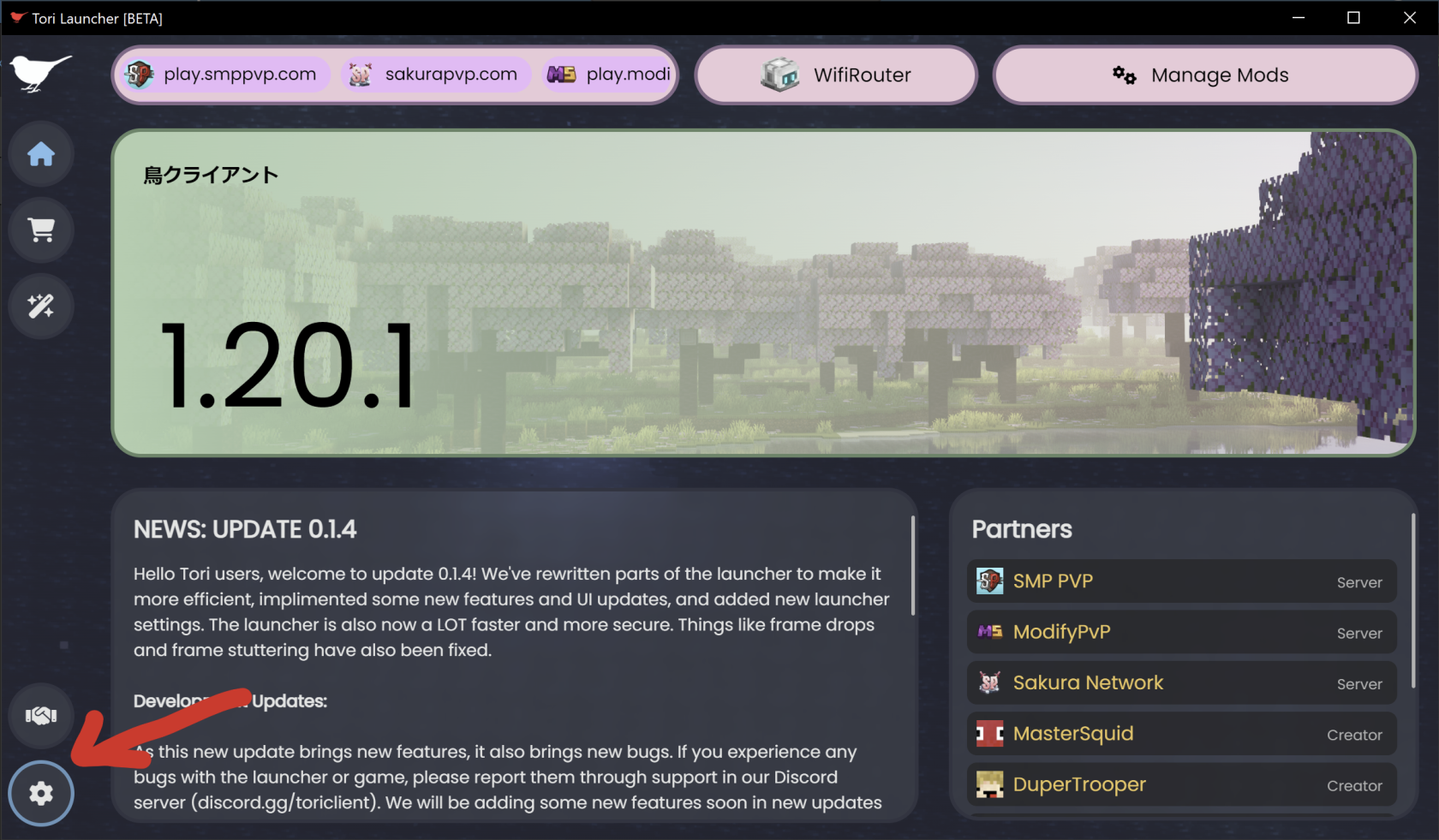](https://help.toriclient.com/uploads/images/gallery/2025-03/VWdimage.png) - Hit the blue Upload button [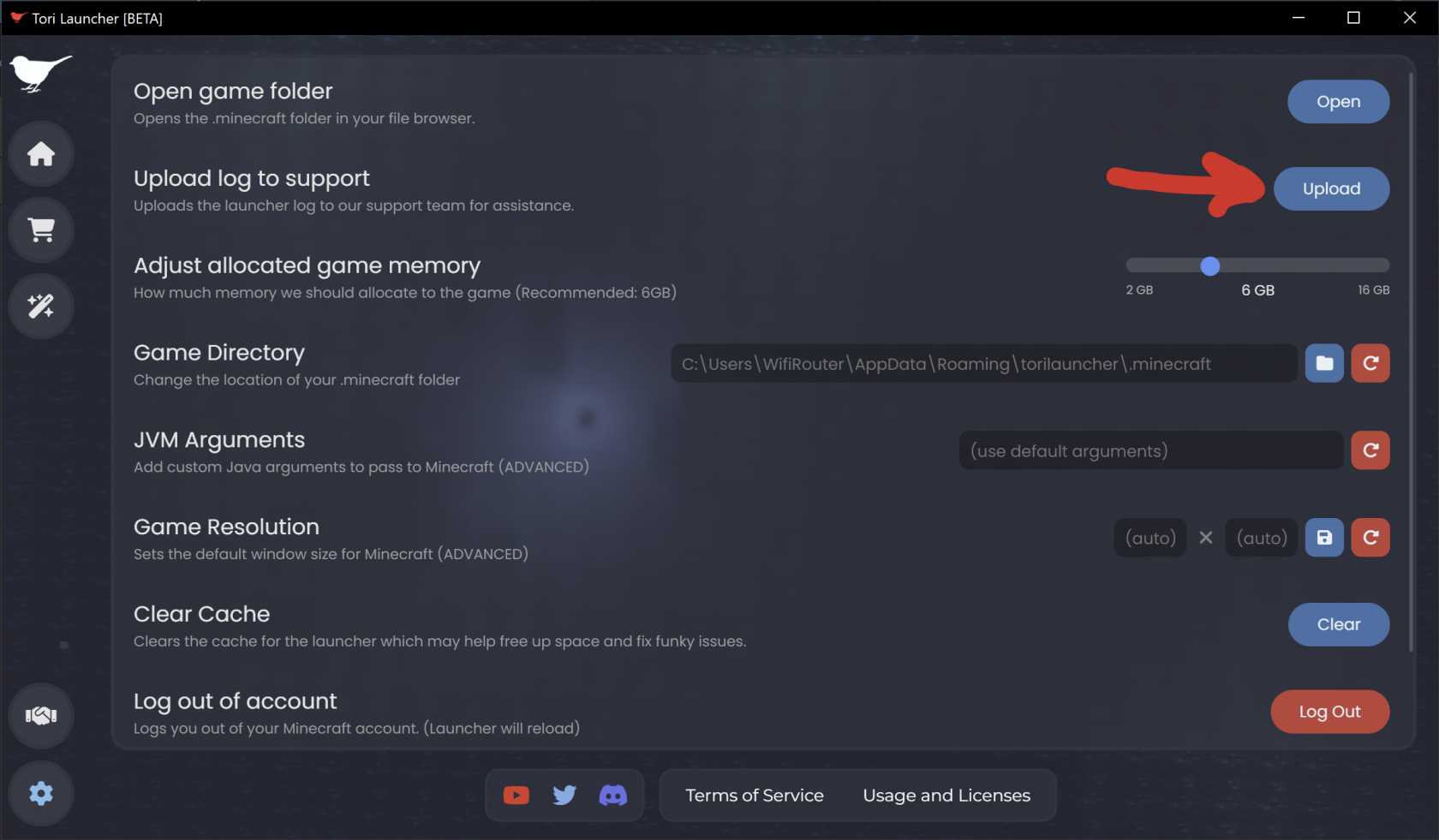](https://help.toriclient.com/uploads/images/gallery/2025-03/U68image.png) - A popup will appear with a randomly generated ID. Open a ticket and send our support team this ID so we can take a look at your log. - [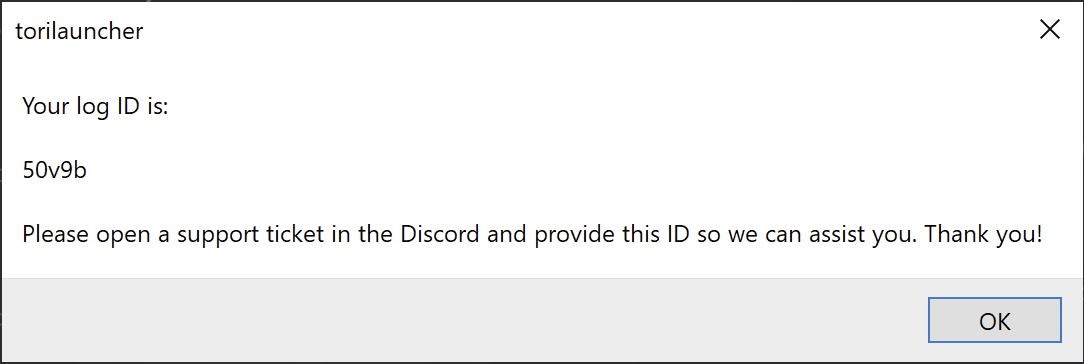](https://help.toriclient.com/uploads/images/gallery/2025-03/kt6image.png) ##### If you CAN'T access the launcher or cannot upload a log automatically - If you are on **Windows**: - Open Run by pressing Windows + R on your keyboard or search for it in the start menu, then paste this into the dialog and hit enter: `%localappdata%/ToriLauncher`. This will open a new File Explorer window in Tori's installation folder. - You will see a set of folders (or just one depending on when you installed Tori) that look like `app-0.x.x`. Open the one with the highest version. For example, if you had `app-0.1.3`, `app-0.1.4`, and `app-0.1.5` you would choose `app-0.1.5`. [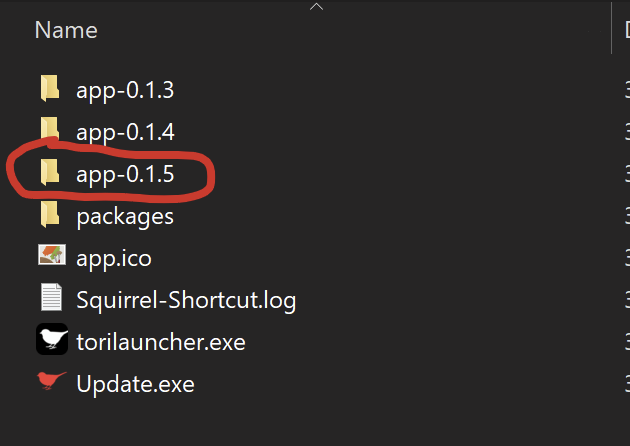](https://help.toriclient.com/uploads/images/gallery/2025-03/i5Simage.png) - In that folder, you will find a file called `launcher.log`, that's the file you're looking for! You can send this file to our support staff directly for assistance.